Warning: Undefined variable $num in /home/shroutdo/public_html/courses/wp-content/plugins/single-categories/single_categories.php on line 126

Warning: Undefined variable $posts_num in /home/shroutdo/public_html/courses/wp-content/plugins/single-categories/single_categories.php on line 127

For Loops


Warning: Undefined variable $num in /home/shroutdo/public_html/courses/wp-content/plugins/single-categories/single_categories.php on line 126

Warning: Undefined variable $posts_num in /home/shroutdo/public_html/courses/wp-content/plugins/single-categories/single_categories.php on line 127

Introduction to Text Analysis


Warning: Undefined variable $num in /home/shroutdo/public_html/courses/wp-content/plugins/single-categories/single_categories.php on line 126

Warning: Undefined variable $posts_num in /home/shroutdo/public_html/courses/wp-content/plugins/single-categories/single_categories.php on line 127

Class 7.1

Regression Demo


Warning: Undefined variable $num in /home/shroutdo/public_html/courses/wp-content/plugins/single-categories/single_categories.php on line 126

Warning: Undefined variable $posts_num in /home/shroutdo/public_html/courses/wp-content/plugins/single-categories/single_categories.php on line 127

Here is a static version of the notebook we’ll be talking through in class.  If you want to download the notebook and explore it yourself, you can do so here.

[iframe src = “http://shroutdocs.org/notebooks/DCS104_f2018/Regression_Example.html”]

Oral History Data README


Warning: Undefined variable $num in /home/shroutdo/public_html/courses/wp-content/plugins/single-categories/single_categories.php on line 126

Warning: Undefined variable $posts_num in /home/shroutdo/public_html/courses/wp-content/plugins/single-categories/single_categories.php on line 127

A README is a document that tells you something important about a program or dataset.  This README will be updated as we gather and systemetize more information about the oral history data.

Each bolded entry is a data table.  Each underlined entry is a column in that table.

factory.csv (http://shroutdocs.org/notebooks/DCS104_f2018/factory.csv)

name: The name of the business. This is a controlled vocabulary – each worker is associated with a maximum of one of these businesses.

total_reported_injuries: The total number of injuries reported in the oral histories.  This includes injuries that were experienced by the people being interviewed as well as injuries that they saw or heard of.


families.csv (http://shroutdocs.org/notebooks/DCS104_f2018/families.csv)

interviewee_index: A unique number associated with each person interviewed.

mother_last: The reported last name of the interviewed person’s mother.  If NA, the name was not mentioned.

mother_first: The reported first name of the interviewed person’s mother.  If NA, the name was not mentioned.

mother_country: The reported country of origin of the interviewed person’s mother. If NA, the country was not mentioned.

father_last: The reported last name of the interviewed person’s father.  If NA, the name was not mentioned.

father_first: The reported first name of the interviewed person’s father.  If NA, the name was not mentioned.

father_country: The reported country of origin of the interviewed person’s father. If NA, the country was not mentioned.

language: The language spoken at home.  This is a controlled vocabulary.

  • English
  • French
  • English and French

siblings: The reported number of siblings.  If NA, the number of siblings was not mentioned or not clear.

first_in_family: Whether the person reported that they were the first in their family to work in the mills. This is a controlled vocabulary.

  • Yes
  • No
  • Unclear


interviews.csv (http://shroutdocs.org/notebooks/DCS104_f2018/interviews.csv)

interview_index: A unique number associated with each interview conducted.

type: The category assigned to the interview by Museum L.A.  This is a controlled vocabulary.

  • BRICK
  • SHOE
  • MILL

interviewer: The name of the person conducting the interview.

interview_date: The date of the interview as recorded in the oral history text.

interview_date_mmddyy: The date of the interview recorded in mm/dd/yy/format.

word_count: The number of words in the interview (includes questions and both parties if there were two people being interviewed)


people.csv (http://shroutdocs.org/notebooks/DCS104_f2018/people.csv)

interviewee_index: A unique number associated with each person interviewed.

first: The first name of the person being interviewed

last: The last name of the person being interviewed

interview_index: A unique number associated with each interview conducted.

birthplace_city: The reported city in which the person being interviewed was born

birthplace_state: The reported state or province in which the person being interviewed was born

birthplace_country: The reported country in which the person being interviewed was born

birth_date: The reported birth date of the person being interviewed

birth_year: The year of the reported birth date

highest_ed: The reported highest degree of education reported.  This is a controlled vocabulary.

  • NA – no information
  • Grammar school
  • High school
  • College


work.csv (http://shroutdocs.org/notebooks/DCS104_f2018/work.csv)

interviewee_index: A unique number associated with each person interviewed

type: The type of business that was the person being interviewed’s first job

factory_name: The reported name of the business that was the person being interviewed’s first job

injury_others: Whether the person being interviewed reported others being injured

injury_self: Whether the person being interviewed reported themself being injured

years: Reported years at first business (can be in multiple jobs)

start_y: Reported year started at first job

start_a: Reported age started at first job
Practice Exercise #3 – Quantification


Warning: Undefined variable $num in /home/shroutdo/public_html/courses/wp-content/plugins/single-categories/single_categories.php on line 126

Warning: Undefined variable $posts_num in /home/shroutdo/public_html/courses/wp-content/plugins/single-categories/single_categories.php on line 127

This exercise brings together what we have learned about quantification so far.  You will be creating your own notebook from scratch, calling data, manipulating that data, and analyzing it.  Please submit the notebook via this Lyceum link (section A) (section B) by the start of class on October 25th.

Note: Since you all are cleaning the data, you will not be able to start this lab until 5 PM on Tuesday the 16th.

Steps:

  1. Set up
    1. Create a new notebook. Name it DSC_104_PE3 (do not include your name – I will grade anonymously and then return your notebooks)
    2. Title your notebook. Make your first cell into a markdown cell (hit escape and then m) and then enter one hashtag – this makes the cell into a title cell.  (For more on markdown syntax, look here) Write a placeholder title (you’ll come back at the end and change the title). Run the cell.
    3. Title your sections. Repeat the steps above for seven new cells but use two hashtags (this creates smaller title text).  Name them: Introduction, Calling Data, Exploratory Statistics, Correlation, Categorical Variables, and Regression.
    4. Look over the README I created for our data.  It describes each table, gives the URL that holds that table, and describes each column in the table.
  2. Calling Data
    1. Use the function library(“psych”) to load the psych library of functions.
    2. In the Calling Data section, name variables and import each .csv mentioned in the README.  Use the read.csv() function, which takes the path to the file (in this case, the URL of the file) and header = TRUE (so that we have column titles)
  3. Exploratory Statistics
    1. In the Exploratory Statistics section, create a markdown cell, and write up two questions that you think this data can answer.  These should be about the relationship between different columns the data (i.e. What is the relationship between date of birth and country of origin? – but don’t use that one, since we’ve already covered it in practice.)  The first one should ask a question about the relationship between columns from different tables. The second one should ask about how three or more columns relate to each other.
    2. Create another cell in the Exploratory Statistics section and use summary() and class() to gather information about each of the columns you mentioned in your question. Remember that you will want to identify a variable and a column in that variable using the syntax variable$column
    3. Create a final markdown cell in the Exploratory Statistics section and describe any insights.
  4. Correlation
    1. Look at your questions, and the tables they reference.  Make a plan for merging those tables.  Remember that the merge() function takes in the two data frames that are being merged, as well as the column in each that contains the information that bridges both.  Create a markdown cell in the Correlation section and write up your merging plan.
    2. In a cell below the one you just created, merge the tables that you identified.  Make sure to create new variables to hold those merged tables. Create a new cell to view your tables to make sure they are what you want them to be.
    3. Your next steps here will be determined by whether the questions you posed in step 3.1 require the comparison of columns with numerical data.  If so, use those columns, if not, pick two other numerical columns from your merged table.
    4. First use which[] to create a new data frame in a new variable that DOES NOT have any NAs in the columns you wish to compare.
    5. Then, use as many cells as you need and the cor() function to explore correlations between the columns you identified.
    6. Add a markdown cell after each code cell to explain what the resulting correlation tells you about your questions.
  5. Categorical Variables
    1. Create a new code cell in the Categorical Variables section. If your questions in step 3.1 required you to explore relationships between categorical columns, use the table() function to first create variables that contain count tables. If your questions in step 3.1 do not require you to explore relationships between categorical columns, pick two categorical columns from your merged table.
    2. For each table, produce a pretty table using ftable() and a proportion table using prop.table()
    3. For each table, use chisq.test() to determine whether the distribution of data in that table is likely due to random chance or not.
    4. Add a markdown cell after each table to explain what the resulting correlation tells you about your questions.
  6. Regression
    1. Return to the question about the relationship between multiple columns that you posed in step 3.1.  In a new markdown cell in the Regression section, make a list of the columns you are interested in, along with whether they are categorical or numerical. Pick one of the numerical variables and identify it as your dependent variable.
    2. Subset your merged data so that each of the columns ONLY contains data that is NOT NA.
    3. Create a set of column titles and subset your data so that you have a new variable containing a new data frame that only has the columns you want.
    4. Create a markdown cell and speculate about how your independent variables might contribute to your dependent variable.
    5. Use as.data.frame(dummy.code()) to create a new variable and a new data frame that contains dummy codes for your categorical variable.  If you have more than one categorical variable, you will need to create more than one dummy code data frame.
    6. Look at the table(s) you just created.  Use the syntax data$new_column <- dummy_data$one_column to add all but one of the dummy code columns to your data frame.
    7. Create a linear regression model using the lm() function.  Refer to the regression example for syntax.
    8. Use summary() to assess which variables contribute to your model.
    9. Create the model again, dropping the variables that were not significant (starred)
    10. Create a markdown cell describing what this model tells you about the relationship between different columns.
  7. (Finally) Introduction and title
    1. Return to the top of your notebook and write up a paragraph summarizing your findings.  In this paragraph, reference AT LEAST three of the readings we have completed this semester.
    2. Add a catchy title.
    3. Download your notebook (file > download as > Notebook (.ipynb) ) and upload it.

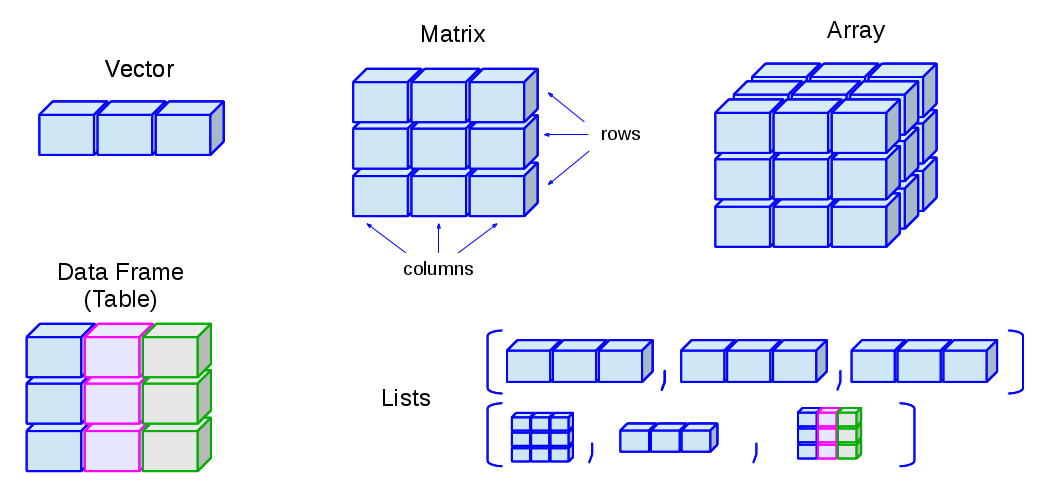
Thinking about data structures


Warning: Undefined variable $num in /home/shroutdo/public_html/courses/wp-content/plugins/single-categories/single_categories.php on line 126

Warning: Undefined variable $posts_num in /home/shroutdo/public_html/courses/wp-content/plugins/single-categories/single_categories.php on line 127

Here’s a helpful viz of how to imagine and visualize the different kinds of data structures:


Warning: Undefined variable $num in /home/shroutdo/public_html/courses/wp-content/plugins/single-categories/single_categories.php on line 126

Warning: Undefined variable $posts_num in /home/shroutdo/public_html/courses/wp-content/plugins/single-categories/single_categories.php on line 127

Class 6.2 – Section B


Warning: Undefined variable $num in /home/shroutdo/public_html/courses/wp-content/plugins/single-categories/single_categories.php on line 126

Warning: Undefined variable $posts_num in /home/shroutdo/public_html/courses/wp-content/plugins/single-categories/single_categories.php on line 127

Class 6.2 – Section A